Share a Report
Learn how to create a external link to share reports with users inside your Foreplay team or as a guest - perfect for agencies looking to share reports with clients.
Written By Zach Murray
Last updated Over 1 year ago
Creating a Share Link
To share a report via a link first, save your report and then click the “Share” button in the top right corner. A modal will appear.
Option 1: Live Updating Links
Live updating share links should be used when you expect the link to be used now, and into the future. This share link allows you to set a specified date range that will be updated into the future.
Example: If you want a report of the Top Performing ads to share with your clients. Create a share link that will always display data from the last 7 days.
Your client will be able to look at this link and see updated data from today, into the future.
Option 2: Static Snapshot Links
Static snapshot share links should be used when you want to share data from a defined date range. This share link allows you to set a specific start and end date that will never be updated no matter when someone views the link.
Example: If you want to share a Influencer Comparison report with your performance manager for the month of June, create a share link from June 1st → June 31st.
Your manager will be able to look at this link and see the historical data from this time period.
Report Security
Keeping your advertising data safe is important there are 2 ways to keep your creative data secure when sharing links externally.
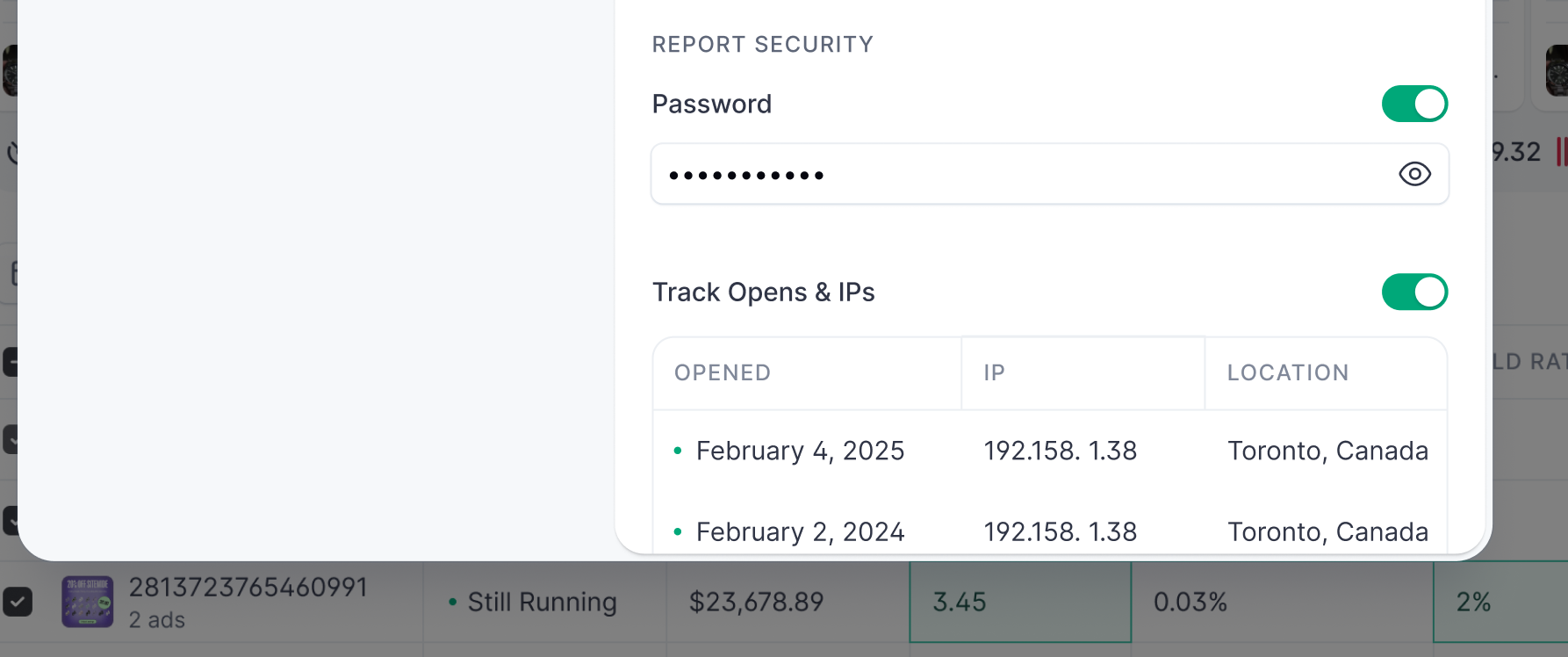
Enable Password
Toggle on a password for your share link. This means whoever you share the link with will need a password to access.
Tracking Open & IPs
If you enable this toggle you will be able to keep track of every time a report is opened and from what location.
Managing & Deleting Share Links
You can create an unlimited number of share links for a report. They will simply be named by the date they were created.
If you ever want to un-publish or delete a link;
Click on “Share” from the report
Click on the desired share link from the left side of the modal
Clicking the three dots in the top right will give you two options
a. Un-publish Link: This will disable the live link but allow you to re-publish in the future.
b. Delete Link: This will permanently delete the links.
Was this helpful?
Still need help? Share an idea