Top Performing Reports
Learn how to create and leverage the Top performing report type using lens.
Written By Zach Murray
Last updated Over 1 year ago
Top Performing reports allows you to analyze individual ads based on a singular common element like Ad Name, Headline, Copy etc. Different from Comparison Reports which is a higher level view allowing you to analyze how different groups of ads are performing against each-other.
Creating a Report
Once you have created a Lens Brand and connected your ad account you can start creating reports. From the Overview Screen:
Click “New” → Create Report
Select “Top Performing Report”
Enter a name and description
Click “Create Report”
Choosing a Group Setting
By default all new reports created in Lens will group ads by “Ad Name”. This means all ads with the same name will be bundled together in the report giving you a holistic view of that ads performance across multiple campaigns or ad sets.
Here are all the grouping options available to you:
Ad Name - Group together ads with identical names or Post IDs
Creative - Group together ads with currently identical images or videos
Copy - Group together ads with currently identical copy
Headline - Group together ads with currently identical headlines
Landing Page - Group together ads that lead to identical URLs
Selecting Date Range & Filters
In the top-bar you can begin filtering down to the ads you want included in your report. Some filters include Active Status, Campaign Name, Spend etc.
Check out the complete guide on ✅ Filters in Lens for more details.
You can also specify your date range in the top right corner to only display ads that spent during a specific time period.
Editing Your Top Performing Report
Reports are grouped into two main sections, the Graph Block and Table View. These two sections work together allowing you to select which metrics and ads you want to display, and in what format.
Visualization Block
The Visualization block allows you to visualize your advertising data and cherrypick metrics from your performance data to displayed in:
Bar Graph (Up to 5 Metrics)
Line Graph (Up to 2 Metrics)
Card View (Up to 10 Metrics)
You can add and remove metrics from this view by clicking “Add Metric” in the header of the graph.
Table View
The table view allows you view all your performance metrics while editing which ads or groups are included in the Visualization Block above.
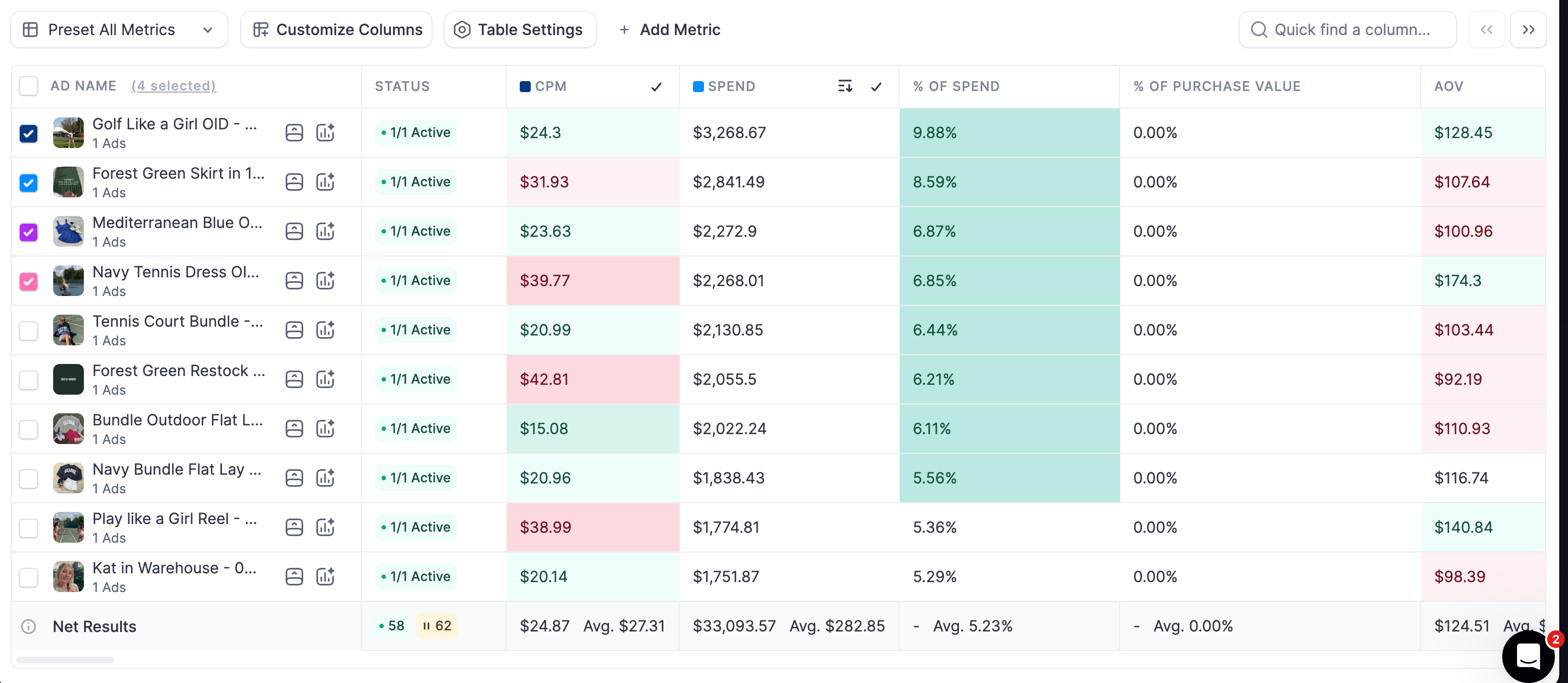
Add/Remove ads and groups using the checkbox on the far left side of a row
Pin Columns using the column header “Pin” icon
Include the column in your visualization by selecting the checkmark icon in column header.
Checkout ✅ Customizing Columns to learn how to get the most out of the table view.
Saving Your Report
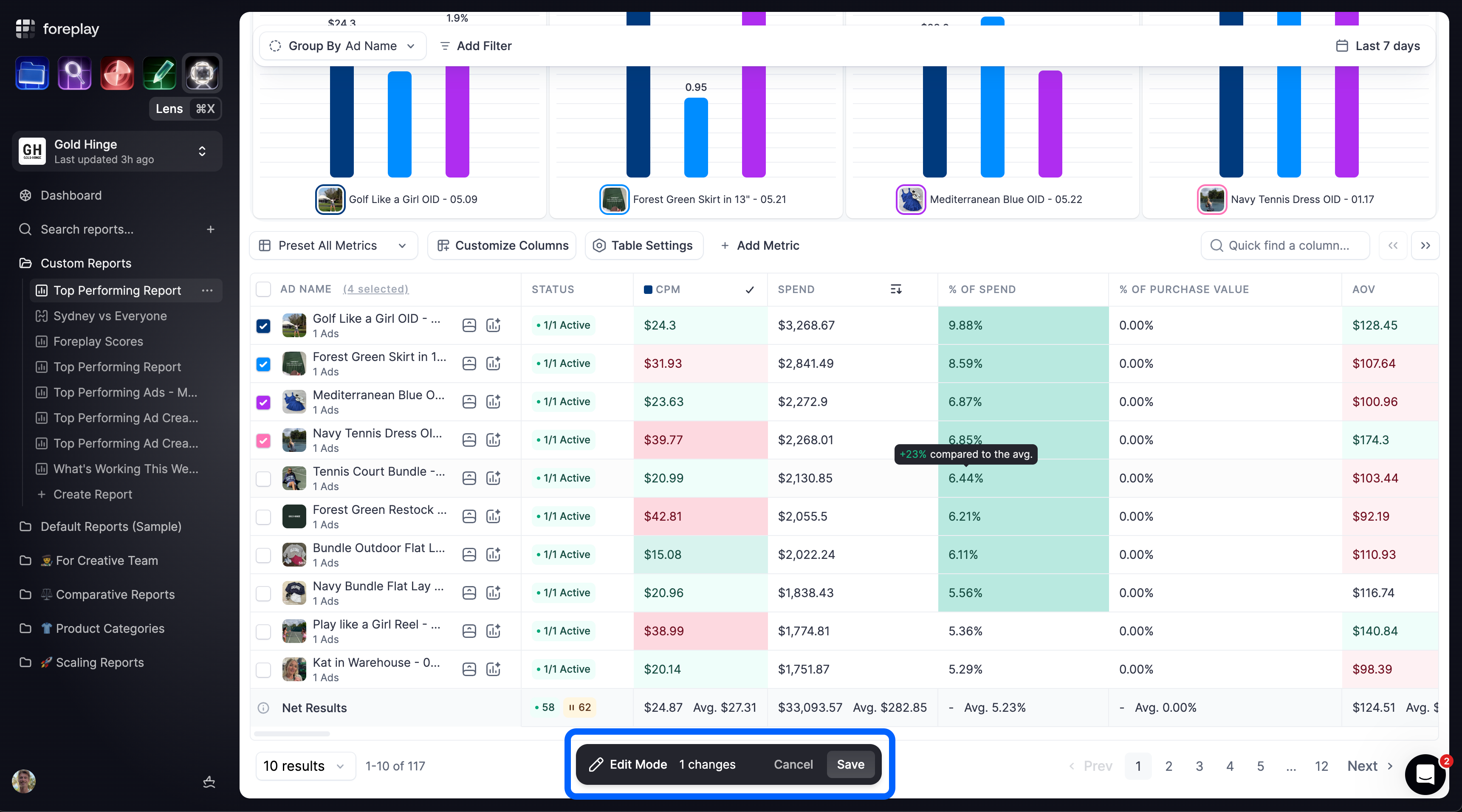
As you edit a report you will see a floating modal at the bottom of your screen allowing you to:
Save your edits
Cancel your edits
How to Change Attribution Windows in Reports
Lens allows you to easily toggle your conversion data based on multiple attribution windows. Currently we support:
Now that you know everything about creating Top Performing Reports learn how to ✅ Share a Report or move onto creating a Comparison Reports .
Was this helpful?
Still need help? Share an idea