Customizing Columns
Not all metrics matter equally to every team. That’s why Lens lets you fully customize your column view—so you can focus only on the data that matters most and create presets to be used across your entire account.
Written By Zach Murray
Last updated Over 1 year ago
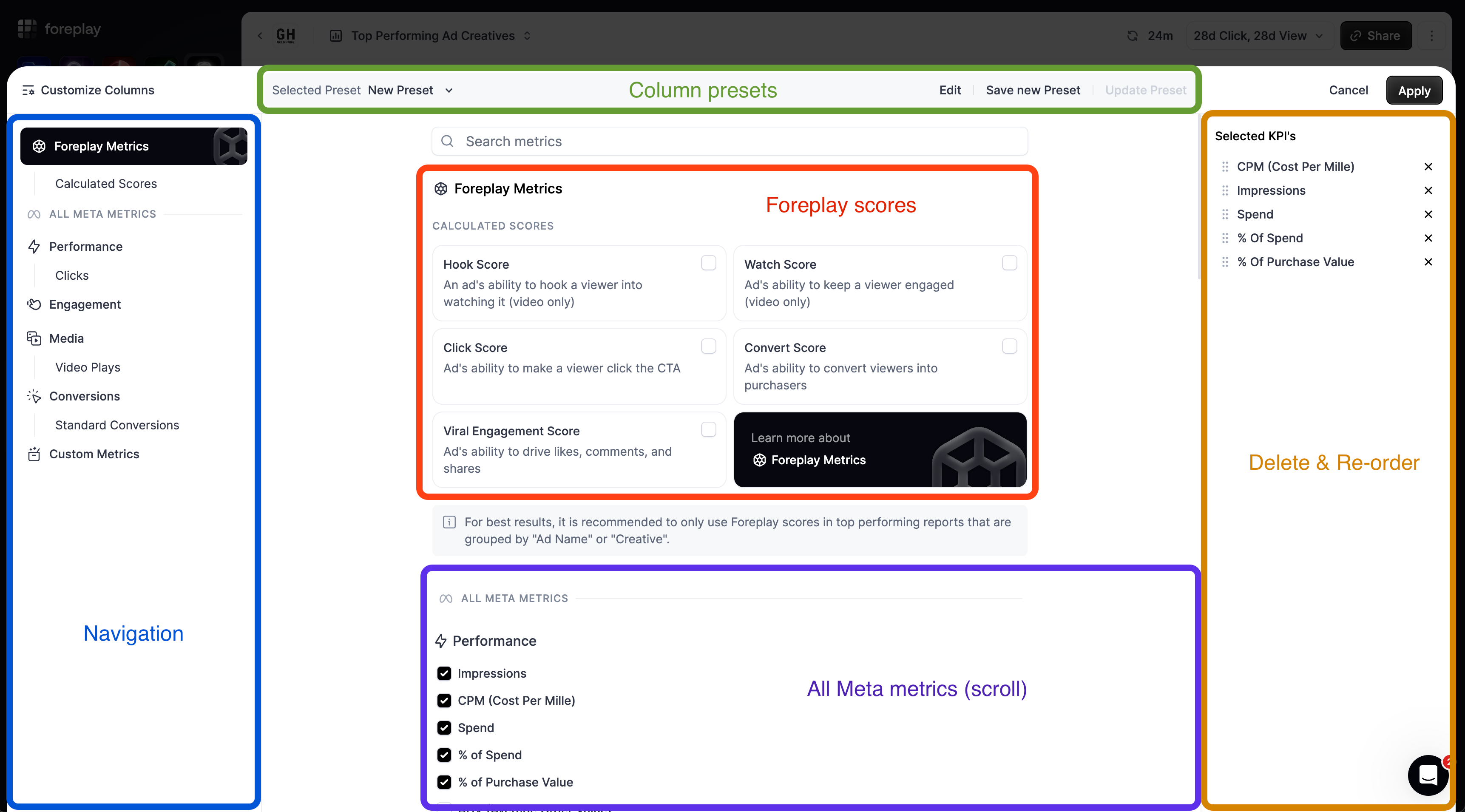
How to customize columns
Column customization and presets are available on Top Performing and Comparative reports. To edit your columns;
Click the “Customize Columns” button above the table view
Select your metrics
Click “Apply”
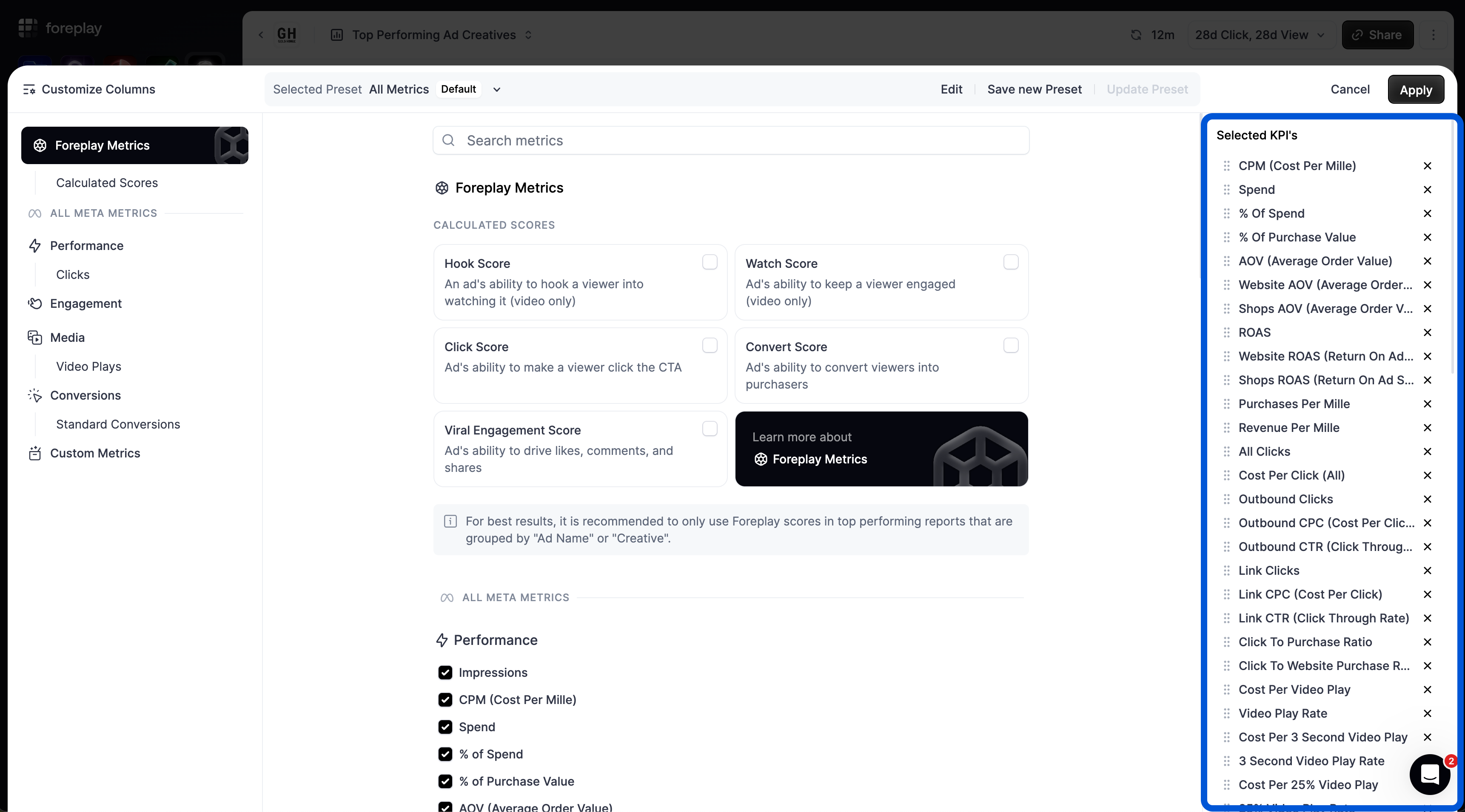
Remove & Re-Order Metrics
You can remove or re-order metrics using the panel on the right-hand side which displays your currently active columns or preset.
Create & Manage Column Presets
With Lens you can create column presets that live across all the accounts you have connected.
Create a new preset:
Open the “Customize Columns” drawer
Select your desired metrics
Click “Save new preset”
Name your preset
Click Save
Update a Preset:
Open the “Customize Columns” drawer
Select the preset you want to update
Make your desired edits or re-order
Click “Update Preset”
Custom Conversions & Metric Presets
Custom Conversions used in column presets will only work inside the Lens brand where it was created. If you create a column preset on Brand 1 using a custom conversion, and try to use it in in “Brand 2” values will return “Null” or “0”.
Was this helpful?
Still need help? Share an idea