Track Competitor with Spyder
Adding a brand to Spyder will track every ad they launch on all Meta advertising platforms 24/7 while keeping a complete historical record of their advertising.
Written By Zach Murray
Last updated Over 1 year ago
Adding a Brand to Spyder
Option 1: Searching for the Brand
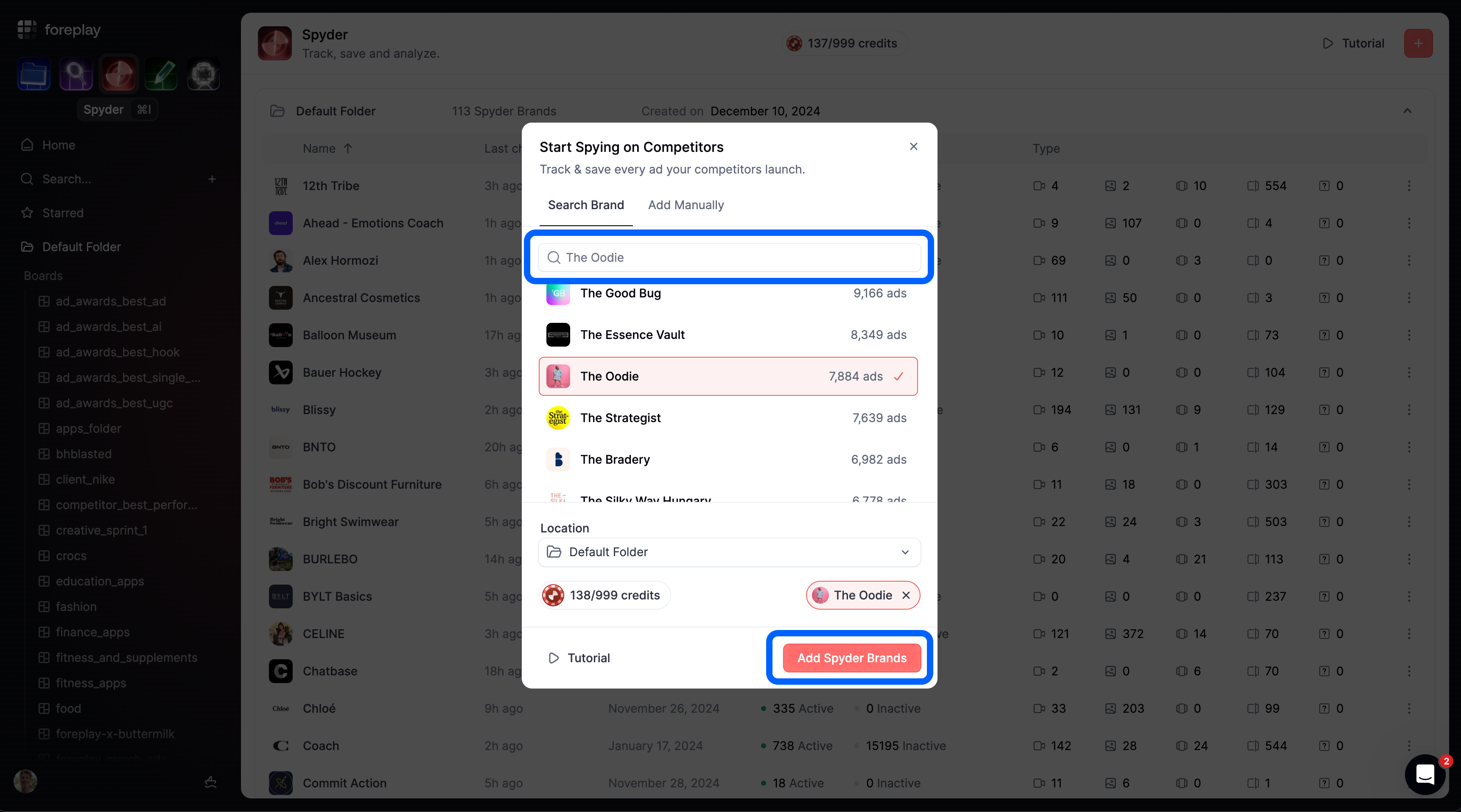
Go to app.foreplay.co/spyder
Click the “+” icon in the top right corner
Search for the brand(s) you want to track
If you don’t see the brand you want to track you can the Add Manually option
Select a Folder
Click “Add Spyder Brand”
Just like that you have lifetime access to every ad your competitors launch on Meta. For over 20,000 brands you will also have historical data from as early as August 2023.
Option 2: Manually Adding a Spyder Brand
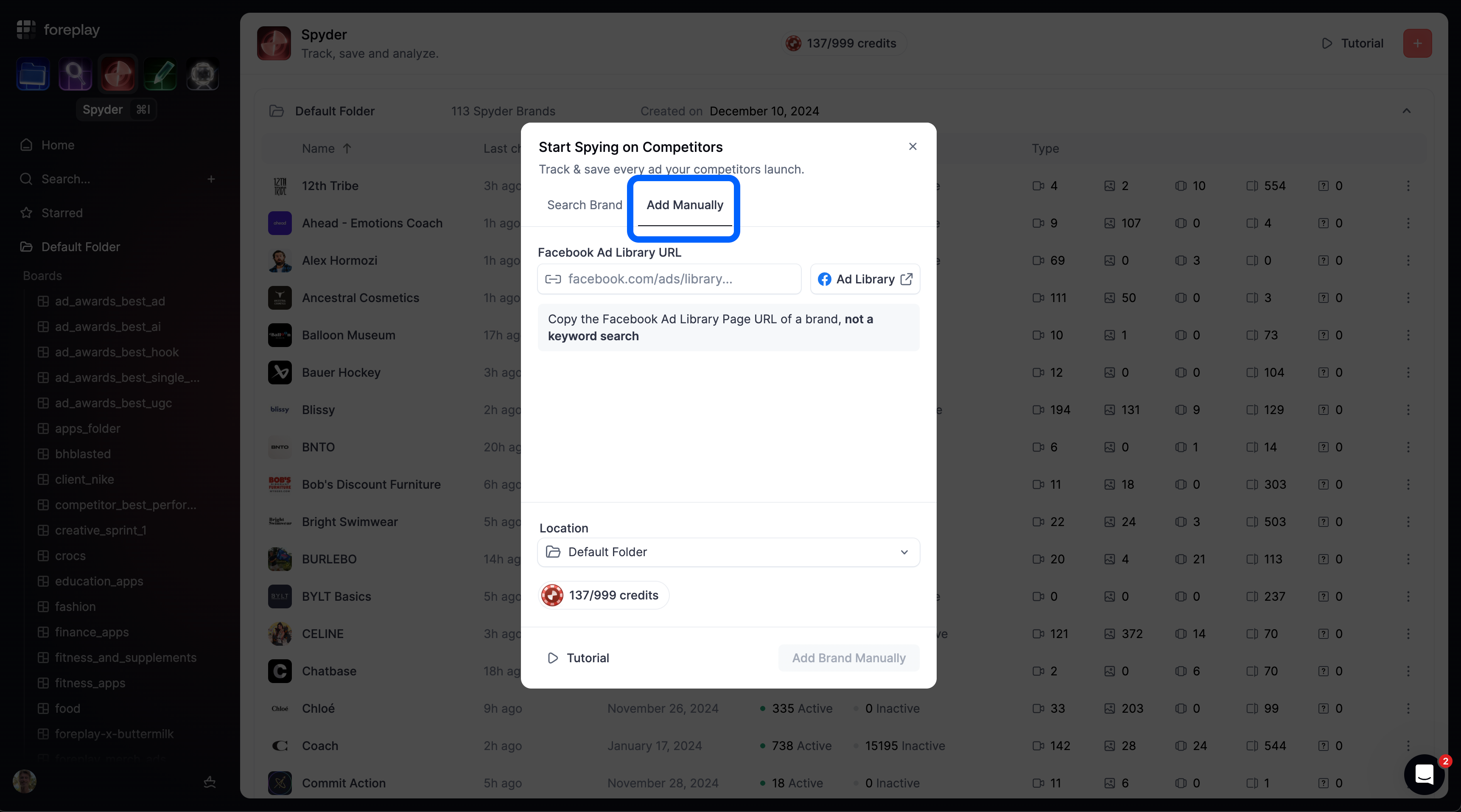
If you are trying to track a brand that has never been added to Spyder, or has never had a single ad saved from it to Foreplay your best option is to add this brand manually.
Go to app.foreplay.co/spyder
Click the “+” icon in the top right corner
Click the “Add Manually” toggle
Copy the Facebook Ad Library URL of the brand you want to track
Paste it in the “Facebook Ad Library” URL field
Select a Folder
Click “Add Spyder Brand”
ℹ️ Manually tracked brands will start collecting data immediately. It may take 5-10 minutes for all currently active ads to be loaded in.
Opening a Brand in Spyder from Discovery
While browsing Discovery you can quickly open and add a brand to track in Spyder. Here’s how”
Click on the brand avatar
Click “Track Brand in Spyder”
Choose a Folder
Click “Ad Brand Manually”
Was this helpful?
Still need help? Share an idea